
How to Set Up Thunderbird, Generate a PGP Key, and Enable Encryption-at-Rest
- Mithun GS
- Dec 9, 2025
- 2 min read

This guide explains how to:
Add your Millionaire.email account to Thunderbird
Generate an ECC OpenPGP key
Upload your public key to Millionaire.email to activate server-side encryption-at-rest
1. Add Your Millionaire.email Account to Thunderbird
1.1 Open Account Setup
Open Thunderbird
Select Add Mail Account
Enter your:
Name
Email address (example: user@millionaire.email)
Password
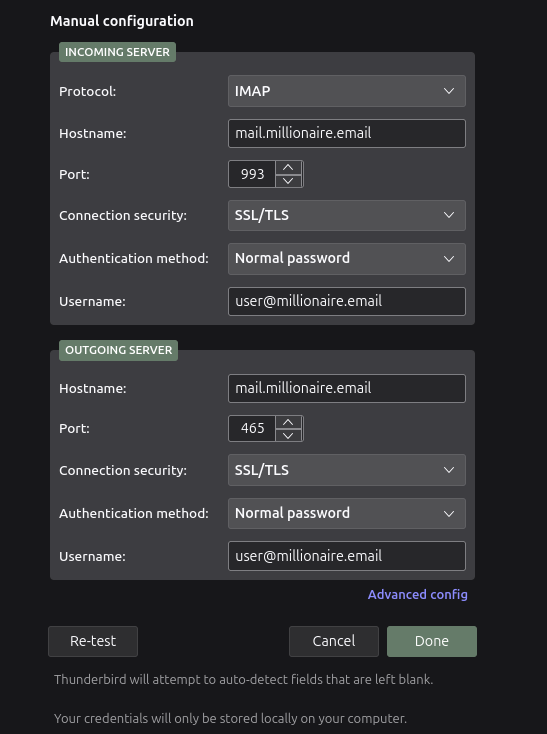
Click Continue → then Manual Setup

1.2 Configure Incoming Mail (IMAP)
Setting | Value |
Server | |
Port | 993 |
Security | SSL/TLS |
Authentication | Normal Password |
1.3 Configure Outgoing Mail (SMTP)
Setting | Value |
Server | |
Port | 465 |
Security | SSL/TLS |
Authentication | Normal Password |
Click Done to finish the setup.
Your mailbox will now sync with Thunderbird.
2. Generate an OpenPGP Key in Thunderbird
Thunderbird includes built-in OpenPGP support.
2.1 Open Encryption Settings
Go to Account Settings
Select End-to-End Encryption
2.2 Create a New Key
Under OpenPGP, click Add Key
Select Create a New OpenPGP Key
Recommended settings:
Option | Value |
Key Type | ECC (Recommended) |
Expiration | Optional (you may choose "No expiration") |
Click Generate Key.
This will create:
A Private Key (stored only on your device)
A Public Key (shared for encryption)

2.3 Copy Your Public Key
Click Manage Keys
Select your key
Click On More
Copy Public Key
3. Enable Encryption-at-Rest in Millionaire.email
Encryption-at-rest ensures that your mailbox is encrypted before messages are stored on the server, using your own OpenPGP public key.
3.1 Log in to the Encryption Panel
Sign in with your email credentials
You will see the Encryption-at-rest settings page

3.2 Configure Encryption
Fill the settings as follows:
Current Password
Enter your account password.
Encryption Type
Select: OpenPGP
Algorithm
Select: AES-256
Certificates
Paste Your Public key
Save changes

Once saved:
Messages will be encrypted with your public key before being written to your mailbox
Millionaire.email cannot decrypt them
Even emails from Gmail, Outlook, Yahoo, or any non-PGP sender are encrypted once they arrive
Only your private key in Thunderbird can decrypt the data
4. Important Notes
If you lose your private key, your encrypted emails cannot be recovered.
You can replace your key at any time, but older messages encrypted with the previous key remain unreadable without the old private key.
Thunderbird must have your private key imported for decryption to function.
Once you upload the public key only at Encryption-at-rest will be activated, otherwise It won't work.
Comments